The RCLS
Go app will remain available through December 31, 2026, before it is discontinued.
Instructions for adding to APPLE/IPHONE home screen
Safari
Open Safari and navigate to your library catalog website.
Click here for library catalog
Tap the Share button (the square with the upward-pointing arrow). Depending on your Safari version, you may need to tap the Page Menu button first.
Scroll through the options and select Add to Home Screen.
Tap Add to finish.
Google Chrome
Open Chrome and navigate to your library catalog website.
Click here for library catalog
Tap the Share icon near the address bar.
Select Add to Home Screen, if available.
Follow the prompts to add the shortcut.
Mozilla Firefox
Open Firefox and navigate to your library catalog website.
Click here for library catalog
Tap the Share icon near the address bar.
Select Add to Home Screen, if available.
Follow the prompts to add the shortcut.
Microsoft Edge
Open Edge and navigate to your library catalog website.
Click here for library catalog
Open the browser menu and look for a Share or Add to Home Screen option.
If the option is available, select it and follow the prompts.
If you don't see the option, open the website in Safari and follow the Safari instructions above.
Please note: The available options and their locations may vary depending on your browser and iOS version. If you can't find the option to add a shortcut, try Safari.
Instructions for adding to ANDROID home screen
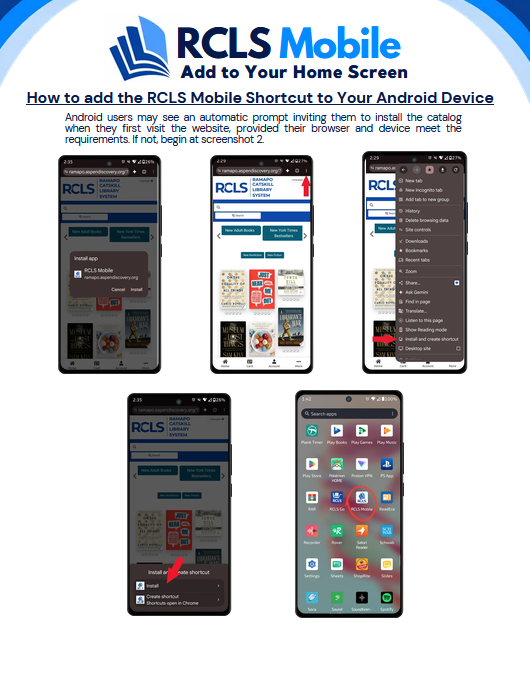
Google Chrome
Open Chrome and navigate to your library catalog website.
Click here for library catalog
Tap the three-dot menu in the upper-right corner of the screen.
Select Add to Home screen or Install app, if available.
Follow the prompts to add the icon to your home screen.
Mozilla Firefox
Open Firefox and navigate to your library catalog website.
Click here for library catalog
Tap the three-dot menu near the address bar.
Select Add to Home screen.
Confirm the shortcut name, if prompted, and tap Add.
Samsung Internet
Open Samsung Internet and navigate to your library catalog website.
Click here for library catalog
Tap the menu button, usually represented by three horizontal lines.
Look for Add page to or Add to Home screen.
Select the home-screen option and follow the prompts.
Microsoft Edge
Open Edge and navigate to your library catalog website.
Click here for library catalog
Open the browser menu.
Look for Add to phone or Add to Home screen, if available.
Follow the prompts to add the shortcut.
Please Note: Browser menus and options may vary depending on your phone, Android version, and browser version. If you don't see the option to add a shortcut, check the browser's menu or try using Chrome.